SET YOUR PASSWORD.
For your existing, approved RK Supply access account.
Open the Continental CLR portal.
Go to clr.rksupply.net. In the reset box, enter your email address and tap SEND RESET LINK. You create the password on UniFi’s page after opening the email link.
Open the reset email.
Look for an email from UID Enterprise titled Your Account Password Has Been Reset by Admin - RK Supply. Check junk or spam if needed. Tap Reset Password in that email. The link expires in 24 hours.
Choose your password.
Follow the password requirements shown on the UniFi page, enter and confirm your new password, then submit. Keep this password for the phone app. If the link has expired or the email does not arrive, contact help@rksupply.net.
Sign in to RK Supply.
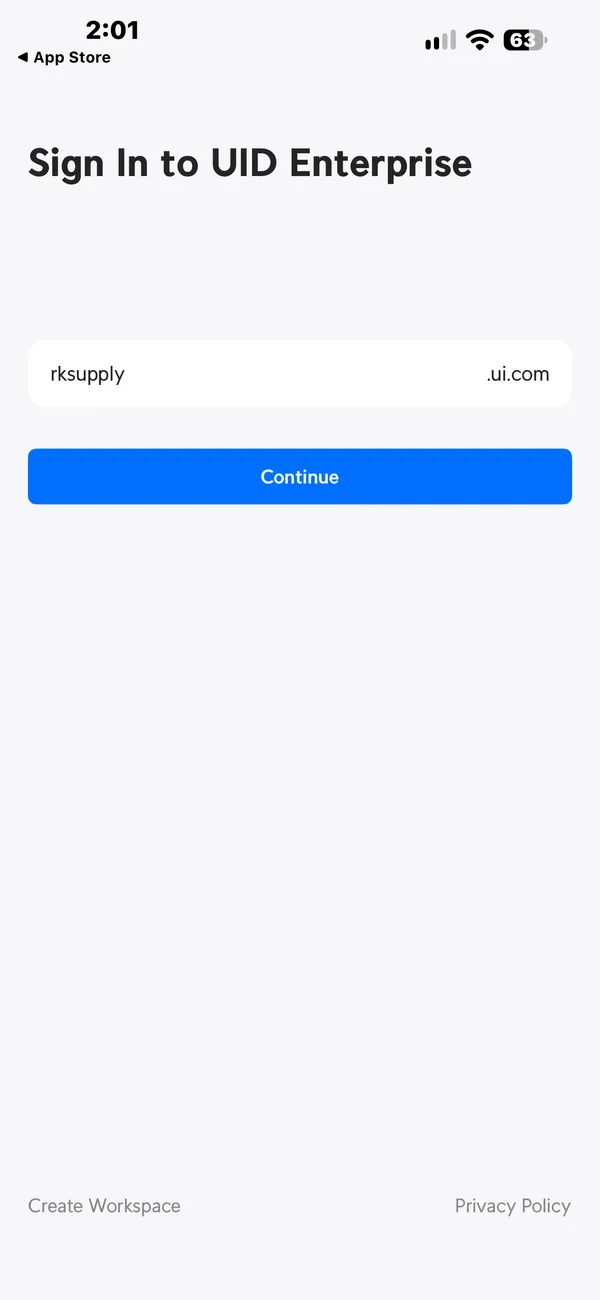
If a sign-in page appears, enter your own email and the password you just created, then tap Sign In. This guide uses the email and password fields.
View screenshot
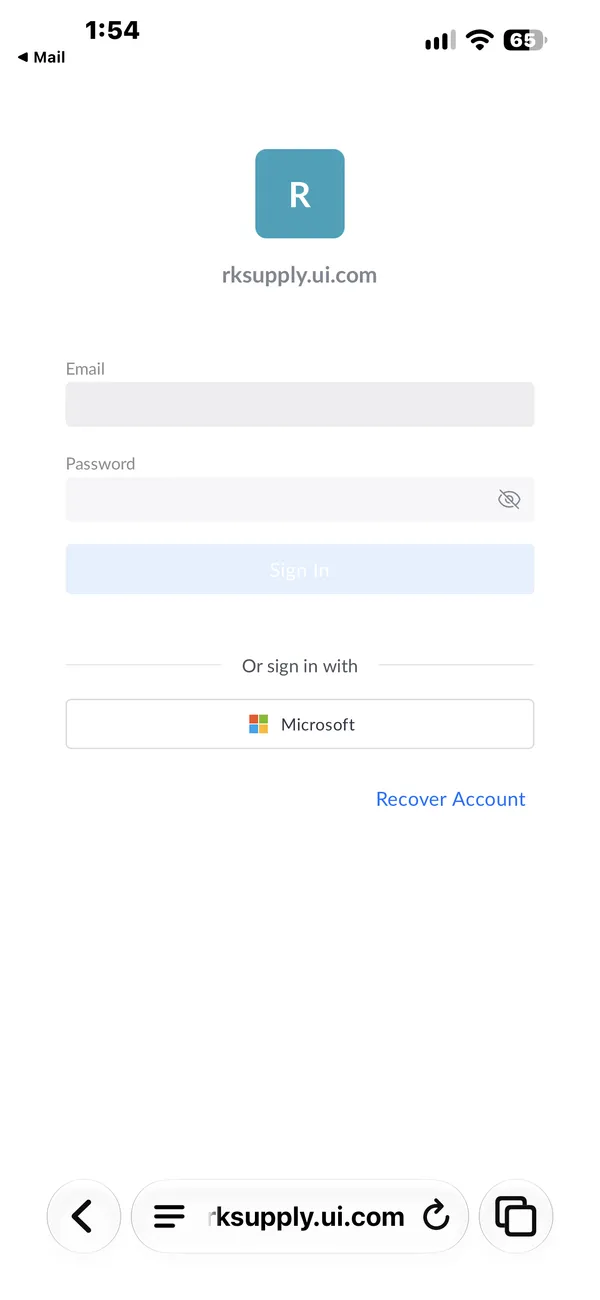
Tap the image to enlarge. Example account shown; use your own email.
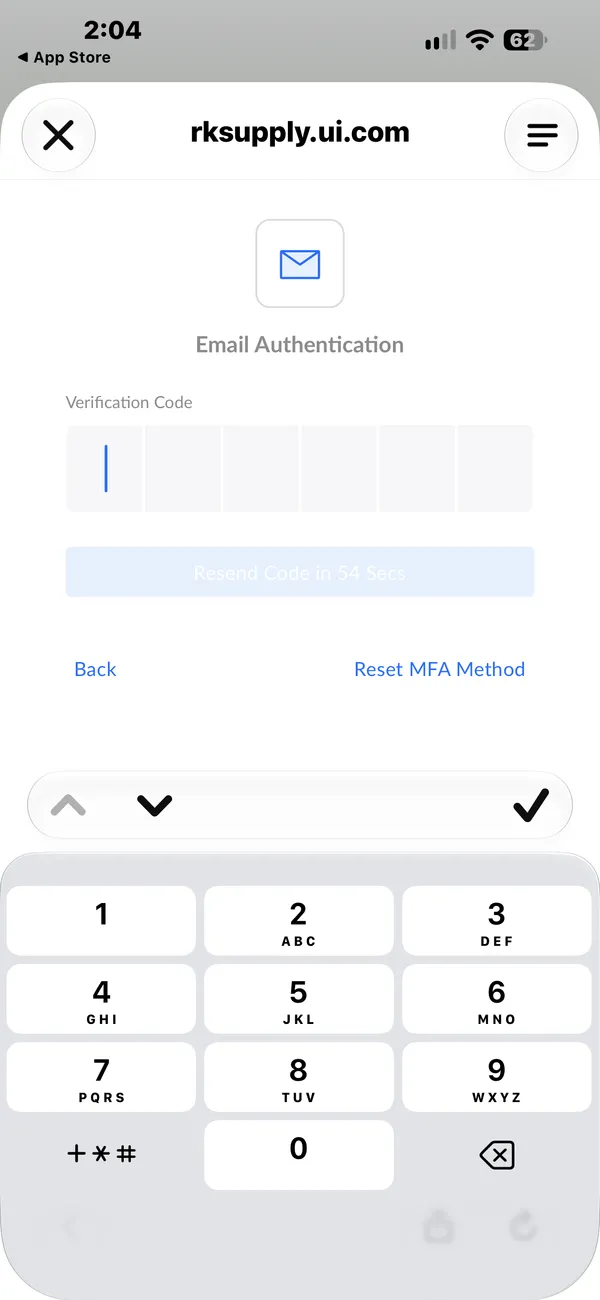
Set up email verification if prompted.
On Set Up MFA Method for Sign-Ins, tap Set Up beside Email Authentication. Confirm your own email address and tap Send me the code. Open your inbox, then return and enter the new code before it expires. Do not use a code from a screenshot.
View screenshot
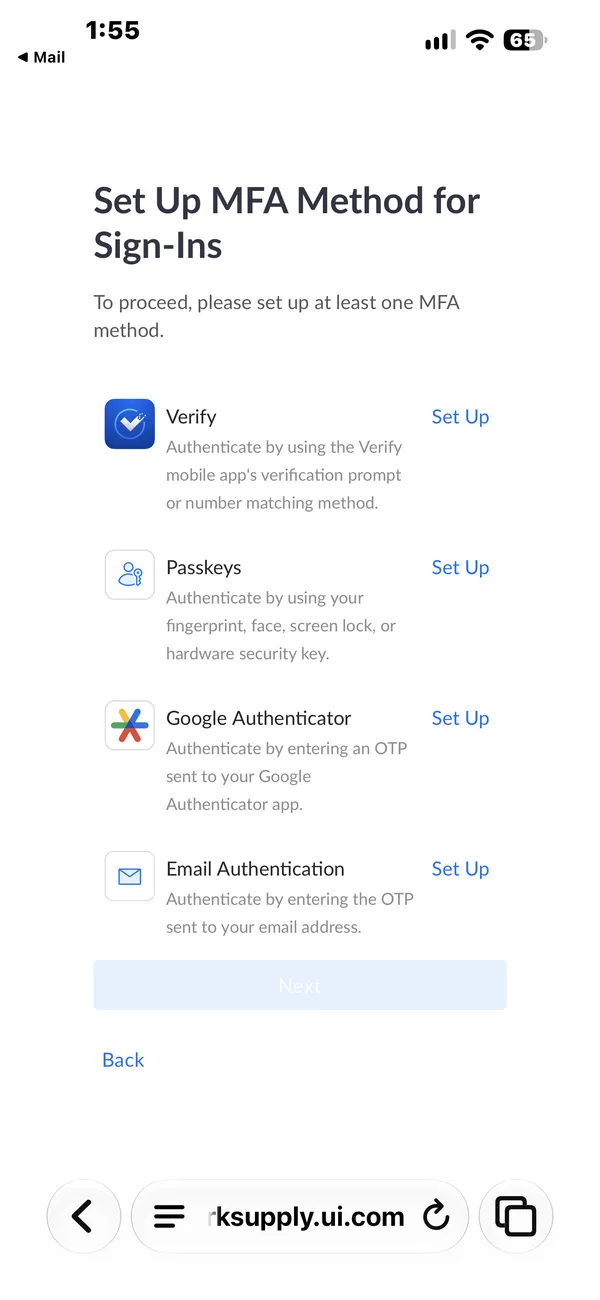
Tap the image to enlarge. Example account shown; use your own email.
Finish setup.
When Setup Completed appears, tap Done, then Next. If email authentication was already configured, you may only need to verify a code. Continue with the app guide below.
View screenshot
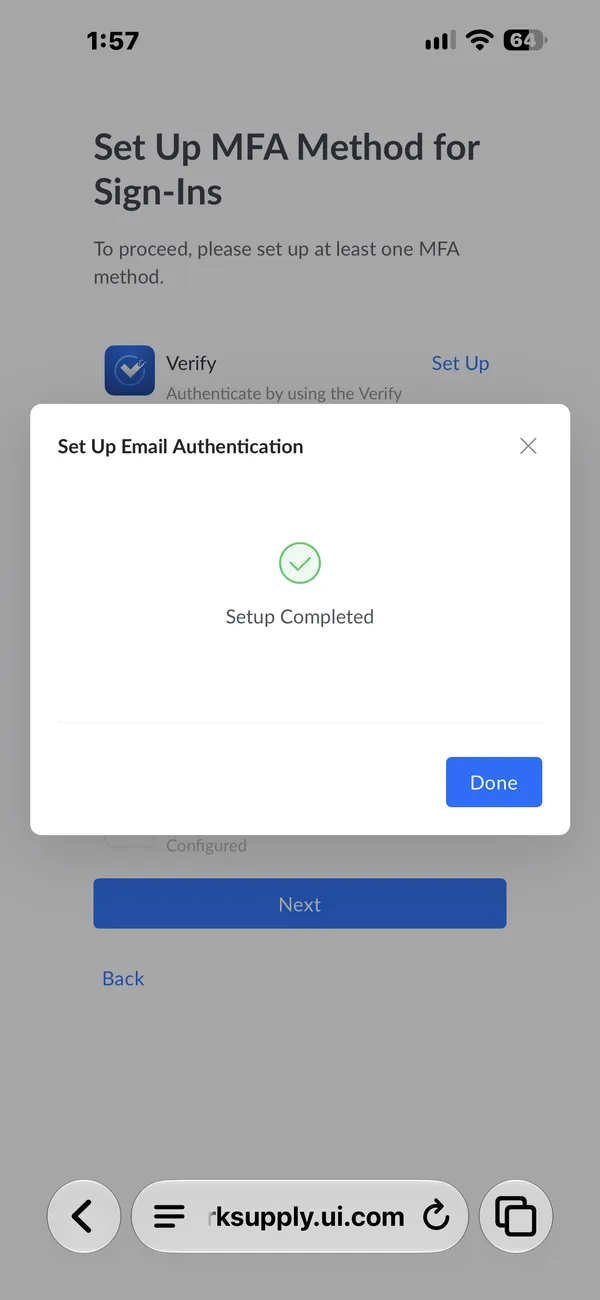
Tap the image to enlarge. Example account shown; use your own email.